AI Edit: Cut the Pauses, Ums and Retakes From Any Video, and Keep the Final Say
Most of the time spent editing a talking video goes on deleting: dead air, filler sounds, the sentence you started twice. AI Edit finds them in any language, shows you every cut with its reason, and hands back the same video, tight and captioned.
Record yourself talking for ten minutes and you get a few minutes of the video you meant to make, wrapped in everything else: the pause while you looked for the next point, the um before every new idea, the first try at a sentence you then said properly. Cutting all of that by hand is slow, careful work, and it is the part most creators skip, which is why so many videos feel longer than they are.
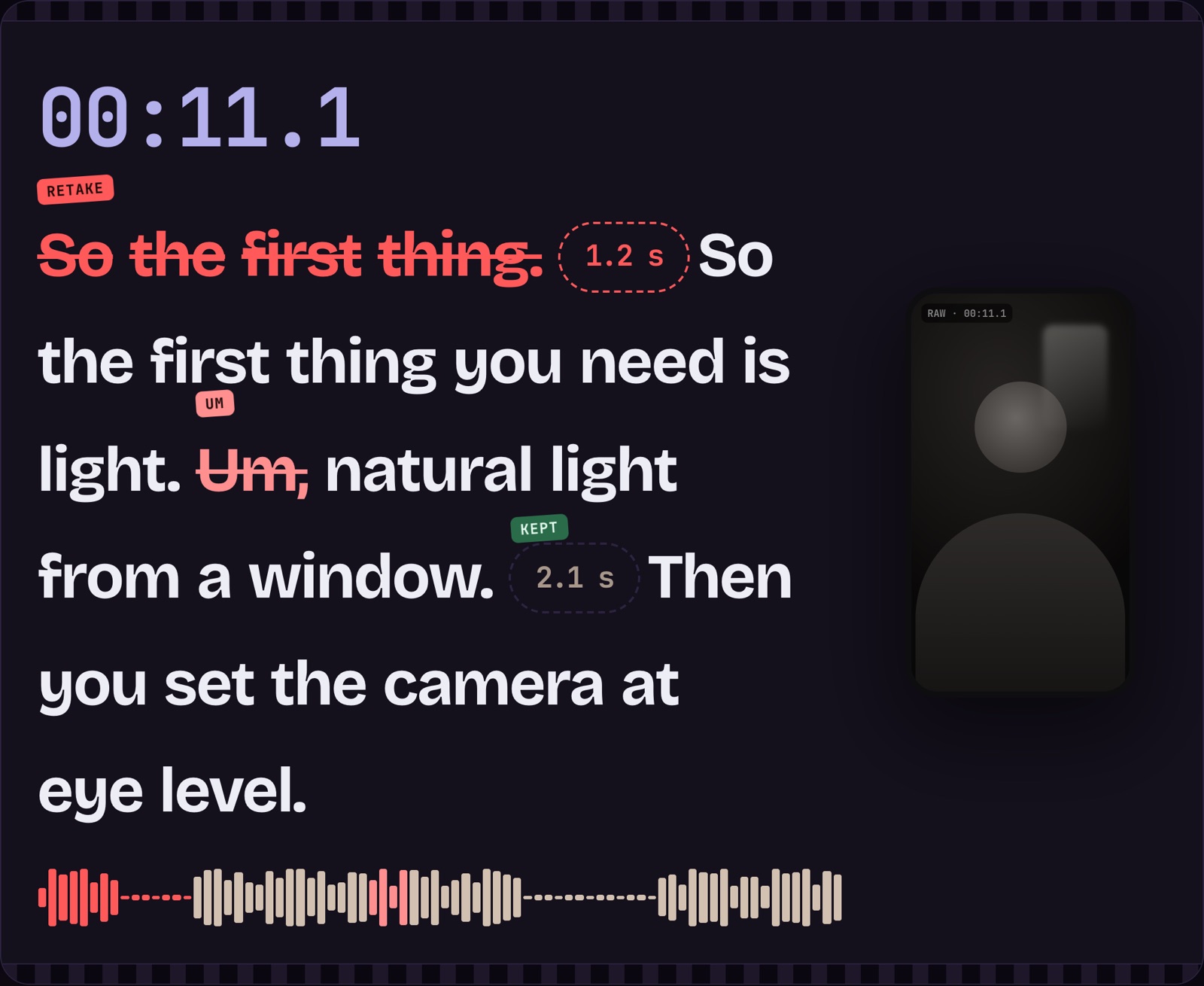
What AI Edit cuts
| What it finds | How it decides | What you can do |
|---|---|---|
| Long pauses | Measured from the audio against your own speaking level, so a soft word is never taken for silence | Keep any pause you want for effect |
| Filler sounds | Um, uh, er and their equivalents in other languages | Switch any of them back on |
| Retakes | A sentence you started, stopped and started again after a pause, keeping the take you finished | Likely rephrases are suggested, switched off, for you to decide |
Every cut is visible, and every cut has a switch
The most common complaint about automatic editing is that it is a black box: you get a video back and have to watch all of it to find out what disappeared. AI Edit works the other way round. It plans the edit first and shows it to you as a list and as struck-through words in the transcript. Tap a cut and it is gone from the plan; tap it again and it is back. A preview plays your video with the cuts skipped, so you hear the result before anything renders.
Cuts land between words, in any language
A cut that clips the last syllable of a word is worse than no cut at all. AI Edit listens to the audio itself rather than trusting transcript timings, and it calibrates to the recording: a quiet podcast and a loud gaming stream get different thresholds. When a recording never goes fully quiet, because music or room sound runs under the voice, it leaves the pauses alone and cuts only the fillers and retakes. It works the same way in English, Arabic, Spanish, Japanese and every other language SpikeReel transcribes.
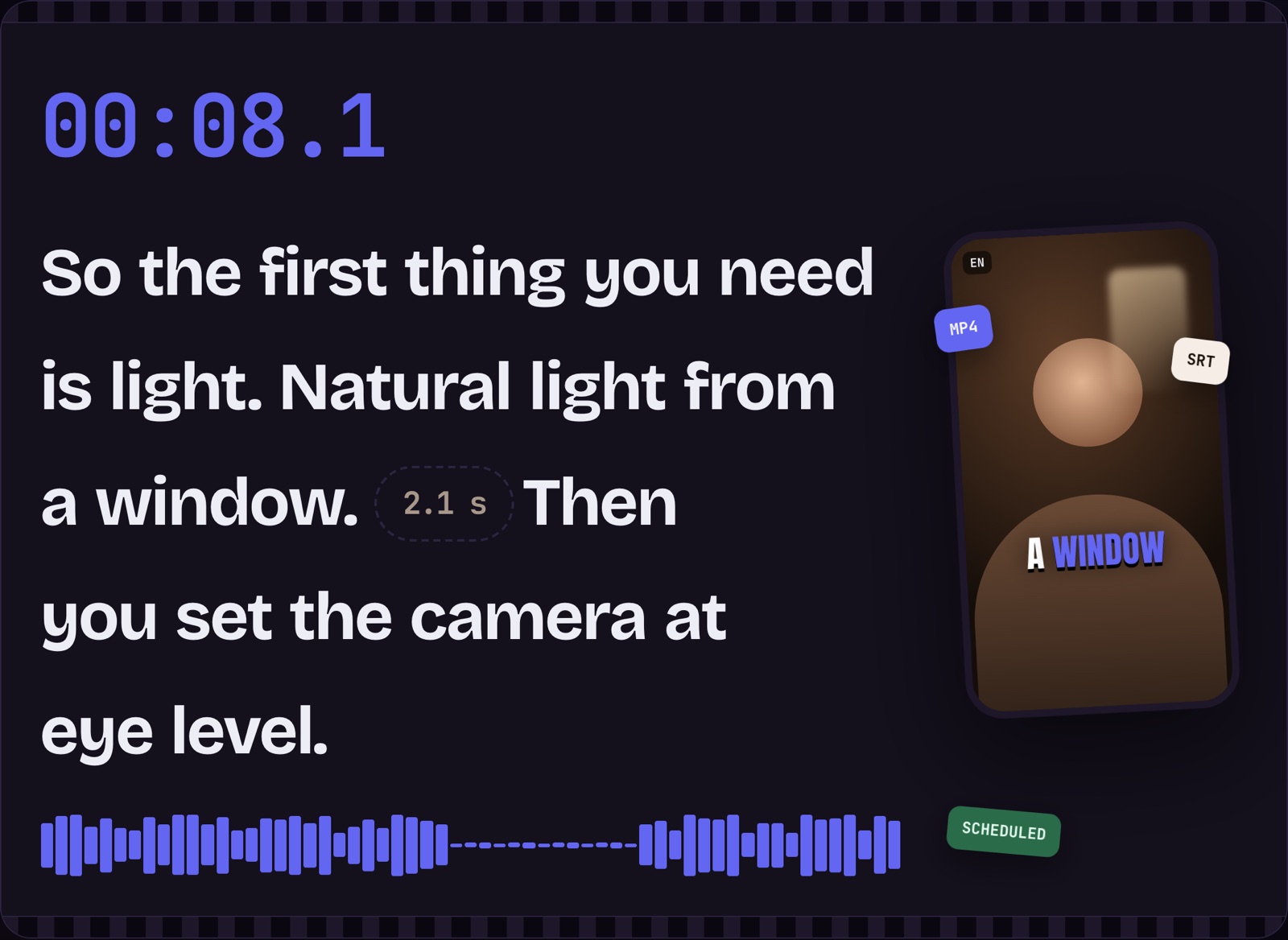
From raw take to post
- Paste a link or upload a recording on spark.spikereel.com/ai-edit and pick a style: Gentle, Clean or Tight.
- Review the edit list and the struck-through transcript, and switch off anything you want to keep.
- Choose the shape, the caption look and, if you like, music under the voice, then render.
- Download the MP4 and subtitle files, or schedule the video straight to your connected accounts.
AI Edit uses 2 credits a minute of video, including the first render. Planning, previewing and switching cuts never use credits, a render after changes uses 1 credit a minute, and a render that fails gives its credits back. Every account can try it on a real video.
AI Edit is live on Spark now. Paste a raw take and get it back tight, with every cut listed and yours to undo.
Want clips like this from your own footage? Try the AI video clipping tool free, no credit card.
Turn your long videos into viral shorts
SpikeReel finds your best moments, reframes them vertical, and burns in captions, automatically.
Start free